Device Surfaces#
Device Surfaces are a graphical representation of a subset of functions in a Device Profile, replicating the physical layout of the device that the Device Profile describes.
These surfaces allow you to control a whole range of MIDI parameters on a device at once, reaching them directly instead of stepping through one message at a time.
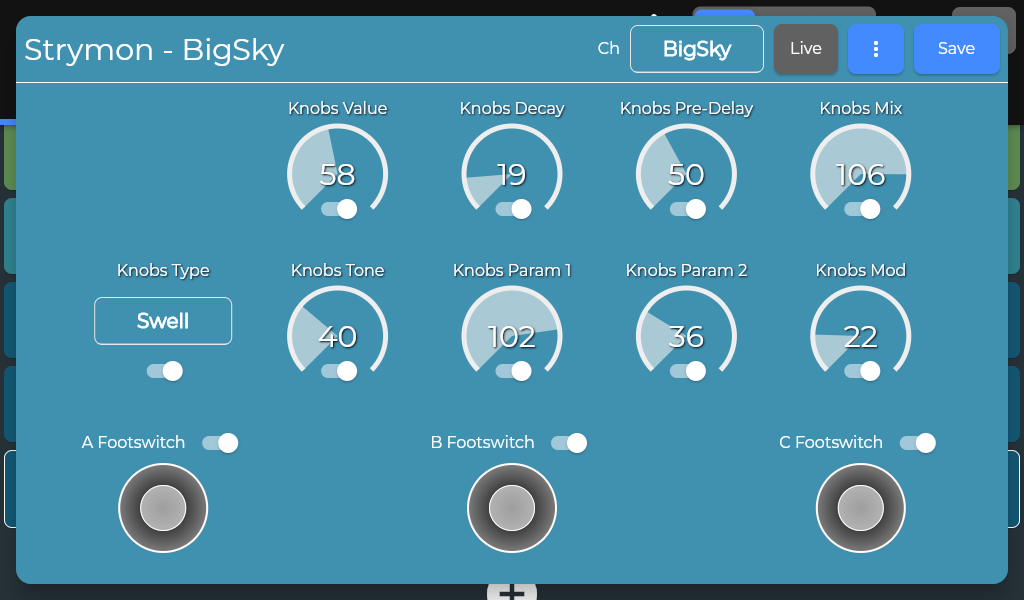
Profiles with more functions than fit on a single screen are split into pages, which you scroll through horizontally. All functions on a Surface transmit on the same channel, selected at the top of the Surface panel.
Once a Surface has been triggered, it also listens for incoming MIDI, so its controls can be operated remotely — either by the device itself or by any other MIDI controller you have connected. Where a Surface is placed decides whether this happens, see Device Surfaces in Macros and Sequencers.
A Surface is drawn on the background color declared by its Device Profile.
Activating only the parameters you need#
Each of the functions on a Surface can be deactivated if there is no need for updating that parameter, and only the active ones are sent. This saves bandwidth on the MIDI cable and reduces the chance of overloading the receiving device, so leaving out the parameters you are not using is recommended.
The overflow menu holds All Parameters On and All Parameters Off. Switching everything off and then enabling just the handful you actually want is usually the quickest way to set up a Surface.
Snapshots#
A Surface can save its current values as a named snapshot with Save Snapshot, and recall it later with Load Snapshot, allowing for easy reuse of device parameters and settings. Saving under a name that already exists asks before overwriting.
Snapshots are stored per Device Profile rather than per Surface, so a snapshot saved on one Surface can be loaded on any other Surface for the same device. This makes it easy to reuse a set of values across several Presets.
If Live is enabled, loading a snapshot sends its values straight away.
Live and Listen#
Two switches control what the Surface does while you have it open in the editor:
- Live: value changes are transmitted as you make them, so you can hear the effect while adjusting.
- Listen: the Surface watches incoming MIDI and moves its own controls to match, letting you set it up from the device itself or from another controller.
Forward MIDI#
Forward MIDI decides whether values arriving through Listen are also sent back out again. With it on, moving a knob on an external controller updates the Surface and passes the new value onward to your outputs.
Forwarding can create a MIDI loop.
If the device you are controlling also echoes back what it receives, forwarding sends it straight out again, and the two can keep triggering each other. Turn Forward MIDI off if you see messages repeating on their own.
Mapping editor#
Edit Mapping switches the Surface into mapping mode, where you define what each control listens to rather than operating it. In this mode each parameter shows:
- The message type it should react to, and the controller/parameter number to match.
- A Learn button, which waits for the next incoming message and fills both in for you.
- A switch enabling or disabling listening for that parameter on its own.
A Listen Channel for the whole Surface appears alongside, and can be set to a specific channel or to OMNI, with optional filtering by input port. This is separate from the channel the Surface transmits on, so a Surface can be played from one channel while sending on another.
End Edit returns the Surface to normal operation.